Support for Storyboard Software Applications

First check the HELP Menu :
Find links to Video Tutorials to assist you to learn what you want, when you want it. If you like reading, first in the Help menu is the PDF documentation/User Guides. And when you update your operating system, choose Check for Updates. For other questions, also see the FAQs.
Find links to Video Tutorials to assist you to learn what you want, when you want it. If you like reading, first in the Help menu is the PDF documentation/User Guides. And when you update your operating system, choose Check for Updates. For other questions, also see the FAQs.
Tech Assistance
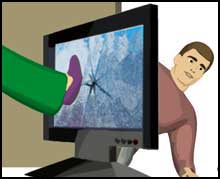
Need assistance quick? Don't panic :) Our technicians work behind the scenes all sorts of weird hours. Use the E-ticket system to notify us of any issue. The response time is fast and friendly.
For authorizations see the Authorization Support page.
Upgrades
If you need assistance on a previous version, first please check for updates under the HELP menu. To Upgrade: Information is available on our site or in announcments on our blog.
StoryBoard Creation Services
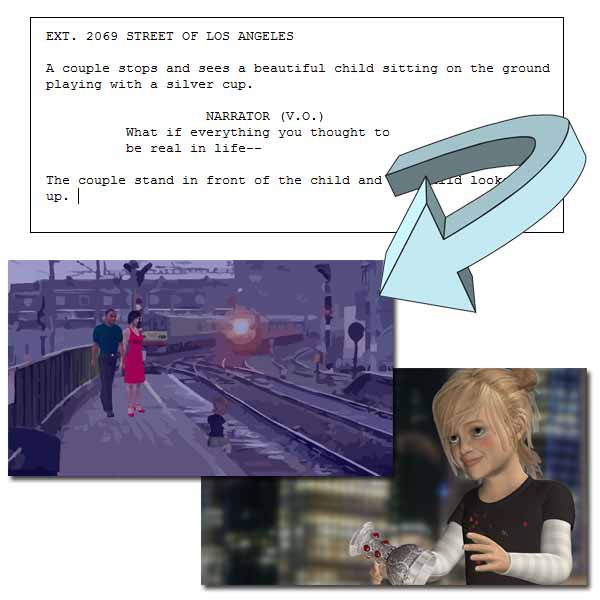
Our experts will turn your script into visuals
If you don't have time to learn the software yet, we'll get you started with a 'first pass' on translating the words to pictures. We'll give you the project for further editing, or just use it for your shoot!
Learn More About Creation Services
One-on-one Personal Training

One of our experts will show you what you need to get your previs done. Learn exactly what you need to create the shots you need. Online training can be scheduled to fit your needs. Screensharing technology puts our expert by your side anywhere in the world.